![]()
Sanako Pronounce
WELCOME…
…to the SANAKO Pronounce Module
Sanako Pronounce is an easy solution for improving oral skills in a foreign language. You can easily transform text material into spoken audio for pronunciation and speech practice. Any text brought into Pronounce is automatically divided into sentences. You can then listen to a model reading of the sentence and make your own recording. After that, you will see your score and visual analysis of your pronunciation.
Supporting platform : Windows®
Supporting OS environment : Windows® 10,11 (64 bit)
Software License Type : Language lab Software is a permanent License Software and can be used continuously without any restrictions. Client should receive a license activation token. The token is entered during Lab software installation to activate the software license.
Educational Technology from Finland | Users in 114 countries and +50.000 classrooms
What is Sanako Pronounce … … …
This solution is very easy to use as students have only three steps to follow:
1) first they listen to the authentic model sentence,
2) they repeat saying what they hear, and 3) they get a score and can listen back to their own recording.
There are two different applications in the Sanako Pronounce family:
| New feature available in our cloud-based language teaching platform – Pronunciation tasks with automated pronunciation grading! … … …
Softare Features…………………….
Pronounce allows you to easily transform text material into spoken audio for pronunciation and speech practice. Pronounce combines the latest text-to-speech technology with voice recognition, creating a powerful tool for language learning. You can listen to authentic speech models, record your own voice for comparison and receive immediate feedback ? all within the same software.
Pronounce automatically splits your text material into sentences. Select the voice that will read the model sentences. You can also adjust the playback speed of model audio. Listen to the model sentence and record yourself repeating it.

HOW TO BRING TEXT INTO PRONOUNCE
Option A: Open a Pronounce file or a text document from the File menu
From the File menu, select Open… and choose the file you want to open.
Note: When importing text from Microsoft Word, only the text will be copied and all images and other editing will be discarded.
Option B: Copy and paste
Highlight a piece of text in any document or web site, right-click and select Copy. Go to the Pronounce program, right-click and select Paste. Pronounce automatically divides the text into sentences.
| Practicing pronunciation … … …
If you followed the previous step, you now have some sentences ready in Pronounce. You can listen to the current sentence by pressing the Listen button.
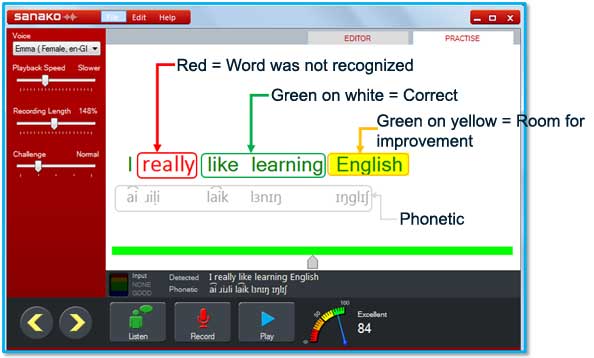
Then you can record yourself repeating the sentence by pressing the Record button*. At this point, Pronounce will give an overall score for the sentence in the score meter. Individual words are color graded:
Colors grade pronunciation of individual words.
If you followed the previous step, you now have some sentences ready in Pronounce. You can listen to the current sentence by pressing the Listen button.
Then you can record yourself repeating the sentence by pressing the Record button*. At this point, Pronounce will give an overall score for the sentence in the score meter. Individual words are color graded:
Score meter gives you an overall score for the sentence
Afterwards, play back your own recording by pressing the Play button and compare it with the model audio. When you are satisfied with the result, use the arrow keys or slider to move to the next sentence.
* The meter above the Stop button shows the quality of the input signal when recording. If the light isn’t green, adjust your microphone settings until it is.
Text-to-speech voices……….
Sanako Pronounce may be used with the default text-to-speech voices in the Windows operating system. However, the text-to-speech voices are optimised for speaking a certain language, so for the best experience you should use a voice that matches the language being exercised. We recommend employing the high-quality voices offered by Sanako.
Speech recognition……….

The speech recognition features, including phonetic transcriptions, correct and incorrect words and pronunciation scores, require a Microsoft Windows speech recognition engine for the language used. Speech recognition engines are included Microsoft Windows operating systems and their additional user interface languages (Microsoft User Interface Language Packs).
If your operating system does not include a speech recognition engine for the currently selected language, the above features are unavailable and you will also see a yellow triangle icon at the bottom right corner of Pronounce. Clicking the icon will give the following error message.
| Using Sanako Pronounce in Editor Mode … … …
Sanako Pronounce allows you to create a “Listen and Repeat” exercise from a simple set of words or phrases. The Editor mode is used to create these engaging exercises from text alone. If you have the text ready, then you can create a fully interactive multimedia pronunciation exercise in minutes.

STEP 1 – OPEN the Editor
When Sanako Pronounce opens it does so in the Practice Mode so to start creating your own exercise click on the EDITOR tab.
STEP 2 – Locate or create your source text………….
In order to create your exercise there are three common methods.
The latter two methods can be achieved using any of the standard Windows methods for Copying and Pasting text along with the icons in the Editor window and the Edit – Paste menu option. Sanako Pronounce will support all UNICODE characters along with any of the language character support you may have installed to your PC for multiple languages such as French, German, and Spanish etc. This is essential in order to ensure that the voices heard by the students are as authentic as they should be – if the word should have a special character or accent then it must be used. An example of an added text is shown below.
STEP 3 – Consider how to break the text into sentences or phrases……….
The software will take the text and create a set of phrases and sentences based on the following logic.

You may consider taking the following action to the original text. Simply add a line break to create the phrases you want as shown below.
You can then select the “Split text using line breaks only” option and effectively decide exactly where you want the breaks to be.
You can always toggle between the PRACTICE and EDITOR mode until you are happy.
Before saving, you may wish to tick the “Select qualities” option and select the required culture, gender and age options as shown below.
The result of saving with these options is that when your students open your saved exercise in Practice mode the Windows Operating System will look at the Text-To-Speech (TTS) voices available to it and where possible it will select the most appropriate.
STEP 4 – Save your work as an Recordings……….

Select File – Save – Recording
Enter the file name for your Recording and then click Save.
STEP 5 – Save your work as an Practising report……….

Select File – Save – Practising
Enter the file name for your Practising report and then click Save.
STEP 6 – Save your work as an Exercise template………….
Select File – Save – Exercise template
Enter the file name for your exercise and then click Save.
| Pronounce Installation license … … …
When you start the software you will be asked for a license token. Enter the token information you have received from Sanako by email and click Activate license.
If the license activation was successful, Sanako Pronounce starts up. It briefly displays a screen with license and version information and then loads the main application window.

Once you have got your system up and running, you are good to go ahead and start practicing. We recommend that you register your license with us at some point. If you are a software maintenance customer, you can get your free upgrade tokens only to your registered email address.
Enter Token – Click Activate Licence
Minimum requirements for the teacher and Students
Sanako Pronounce Sanako Pronounce Sanako Pronounce Sanako Pronounce Sanako Pronounce Sanako Pronounce Sanako Pronounce Sanako Pronounce
Sanako Pronounce Sanako Pronounce Sanako Pronounce Sanako Pronounce Sanako Pronounce Sanako Pronounce Sanako Pronounce Sanako Pronounce Sanako Pronounce Sanako Pronounce Pronounce Sanako Pronounce Sanako Pronounce Sanako Pronounce Sanako Pronounce Sanako Pronounce Sanako Pronounce Pronounce Sanako Pronounce


Related Products

Corporate Office : House # 78/6, New Airport road (2nd floor), Mohakhali, Dhaka-1212, Bangladesh
Telephone No : +880 22222-99242
Contact No : +880 1995 584 322, +880 1717 157 398, +880 1911 385 563
E-mail : info@moebd.net modern_moe@yahoo.com
Web : www.moebd.net
About Us
Contact us
Our Brands
Products Hot Line
Photo Gallery
Privacy Policy
Delivery Information
Refund and Returns Policy
Customer Service
Customer Support
+880 1995 584 322, +880 1717 157 398, +880 1911 385 563