Player. Students may also launch the SANAKO Exam Player themselves for independent practice with existing tests.
The Examination Module immediately generates test result reports for both student and teacher, providing an opportunity for students to receive instant feedback on their performance. The teacher may also choose not to let students see their results immediately.
Supporting platform : Windows®
Supporting OS environment : Windows® 10 & Windows®11 (64 bit)
Software License Type : Language lab Software is a permanent License Software and can be used continuously without any restrictions. Client should receive a license activation token. The token is entered during Lab software installation to activate the software license.
However, the activation process requires an active Internet connection. License registration must be on client or user name. Software should be ISO Certified. Must have Manufacturer activation License Key and Language Lab Software must be registered on Institution and a confirmation must come from manufacturer.
The SANAKO Examination module consists of three software applications
- SANAKO Exam Wizard, which is used by teachers to create exam files.
- SANAKO Exam Player, which is used by students to open the exam files and to answer the questions.
- SANAKO Exam Reports, which is used by teachers to view and manage the exam results.
Select various general settings for the exam
| Question type and view its explanation on the right side of the window… … …
The available question types are:
In Study 1200 teachers can launch exams directly onto the student screens using the Exam activity.
1. Before the actual exam is started, students are asked to sign in. The sign-in name is used to identify the students in test result reports and to name the student exam result files. After entering a sign-in name, press the Enter button on your keyboard. 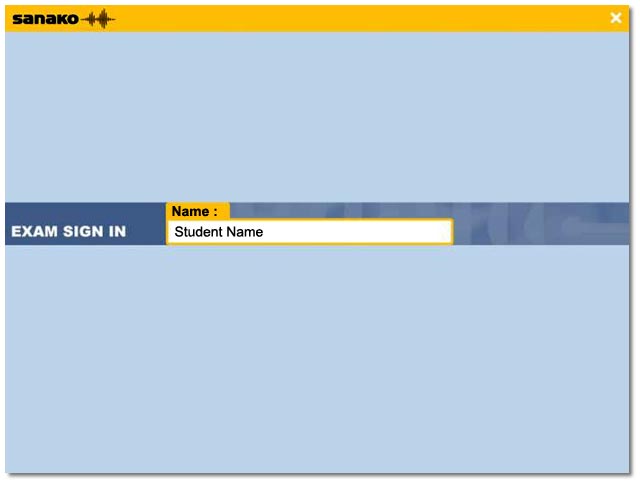
2. After a student has signed in the exam starts. For each question, students need to select a response alternative(s) and then click the Next buttonto proceed to the next question. If necessary, students can also go back to change their answer to a previous question by clicking the Previous button.
3. After a student has proceeded through the entire exam they can view an overview of all of their answers.
- To go back and change your answers, click the Return button.
- To end the exam, click the Submit button. This will save your answers as an exam result file and end the exam.
Once you have started a test for students, an Exam result viewer window will open on the tutor screen displaying the students’ progress. When students have completed the test their answers are saved as an exam result file (.rsl) into the location that was defined when starting the exam and the test result file will appear on the Exam result viewer window
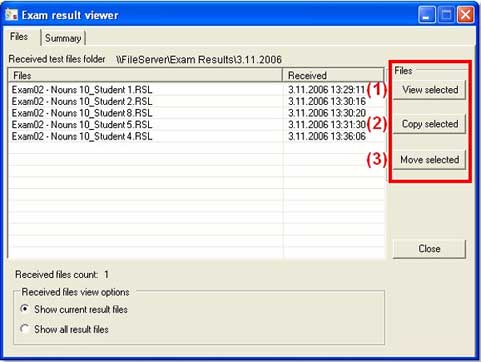
You can then select a student result file and click on the buttons on the right to either
- view a report of the student’s answers
- make copies of the test result files into another location
- move the original test result files into another location.
Alternatively, you can view student results at any time by running the Study Exam Reports application. To start the application, open the Windows Start menu and browse to Programs – Sanako – Sanako Exam Reports.
Minimum requirements for the teacher and Students
- SANAKO Study 1200
- Microsoft® Windows® 10 or Windows®11 system
- 1 GHz Processor
- 256 MB Memory
- 1024×768 and 16bit colors
- AC97 compatible sound card*
- Network Adapter
(*) For a list of suitable sound cards, please contact your local distributor

 Sanako Exam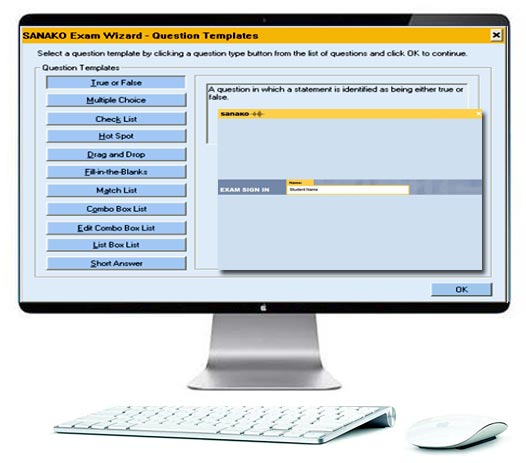


 Sanako Study 1200
 Sanako Pronounce
 +880 1995 584 322, +880 1717 157 398, +880 1911 385 563